
The three places Claude keeps things, and which one wins
You told Claude your name in March. You told it your prices in a project in June. Last Tuesday you corrected the way it signs off an email. This morning it got one of those three right and two of them wrong, and you have no idea why.
The reason is that Claude does not have one memory. It has three places it can keep things, they behave differently, and only one of them is under your full control. Once you know which is which, the wrong answers stop being a mystery and start being a filing problem.
The three places
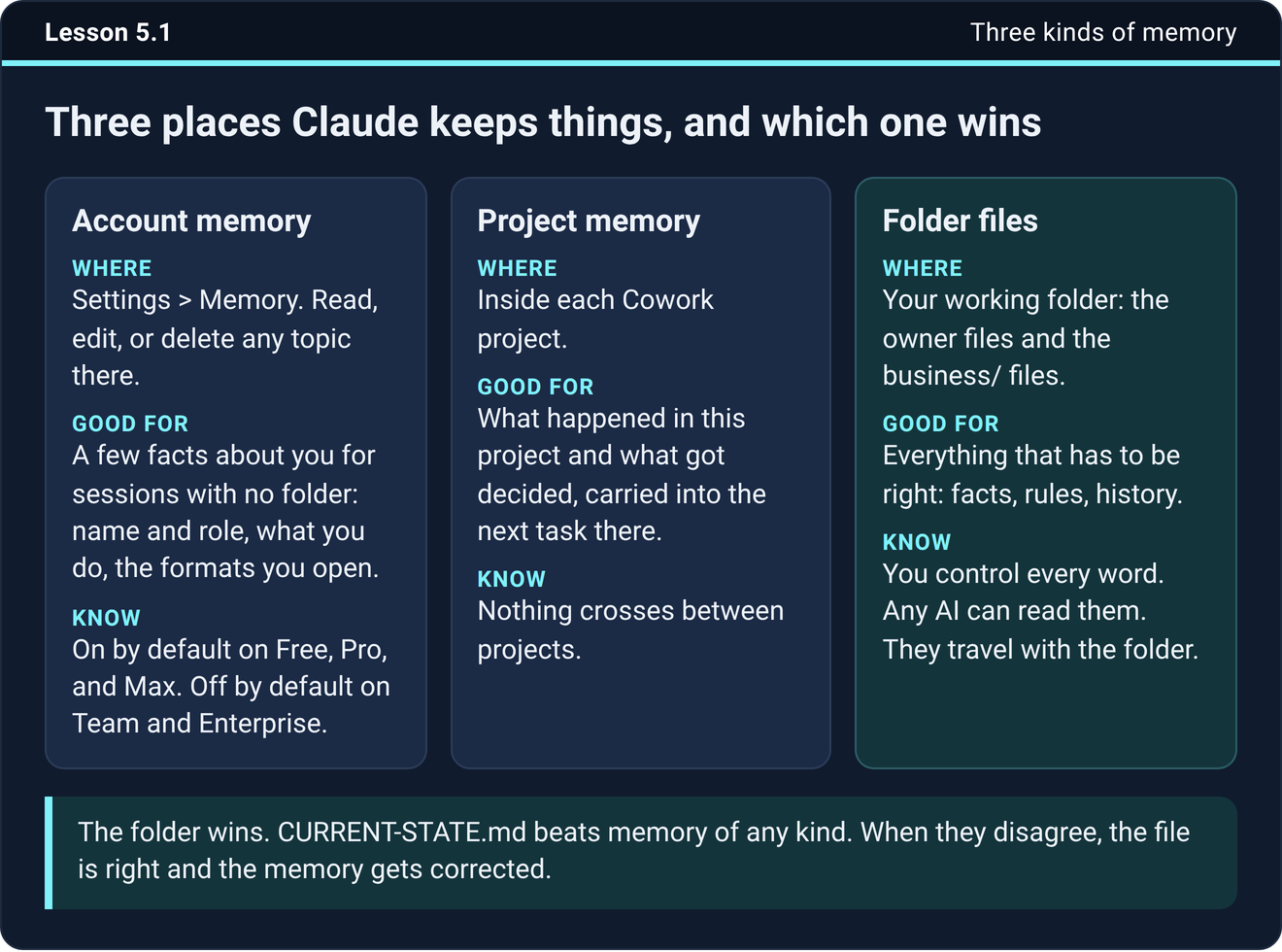
Account memory lives in Settings, under Memory. It is a short set of facts about you that follows you into any session that has no folder behind it. Anthropic's help center, read on September 29, 2026, says it is available on Free, Pro and Max, and off by default on Team and Enterprise until an owner turns it on. You can read every topic it holds on that page, edit one, or delete it. It is the right home for your name and role, what your business does, the file formats you can open, and the fact that your rules live in a file called RULES.md.
Project memory lives inside each Cowork project. It holds what happened in that project and what got decided, and carries it into the next task in the same project. The help center says each project keeps its own separate memory and its own summary, and nothing crosses between projects. A decision made in your marketing project is not known in your bookkeeping project, which is what you want.
Folder files live in your working folder on your computer, the one your project points at. In the course that is RULES.md for how work gets done, CURRENT-STATE.md for what is true right now, CHANGE-LOG.md for what changed, and the business files for your offers, your prices and your voice. You control every word, any AI can read them, and they travel with the folder wherever it goes.
Which one wins
The folder wins. When a memory and a file disagree, the file is right and the memory gets corrected, never the other way round. Memory is a map, and the file is the ground.
That is why the course puts everything that has to be right in the folder. A price, a policy, a team member's name and the date something changed are facts, and a fact has one home. Memory gets the small set of things about you that are useful when there is no folder in the room.
Why the wrong answers happen
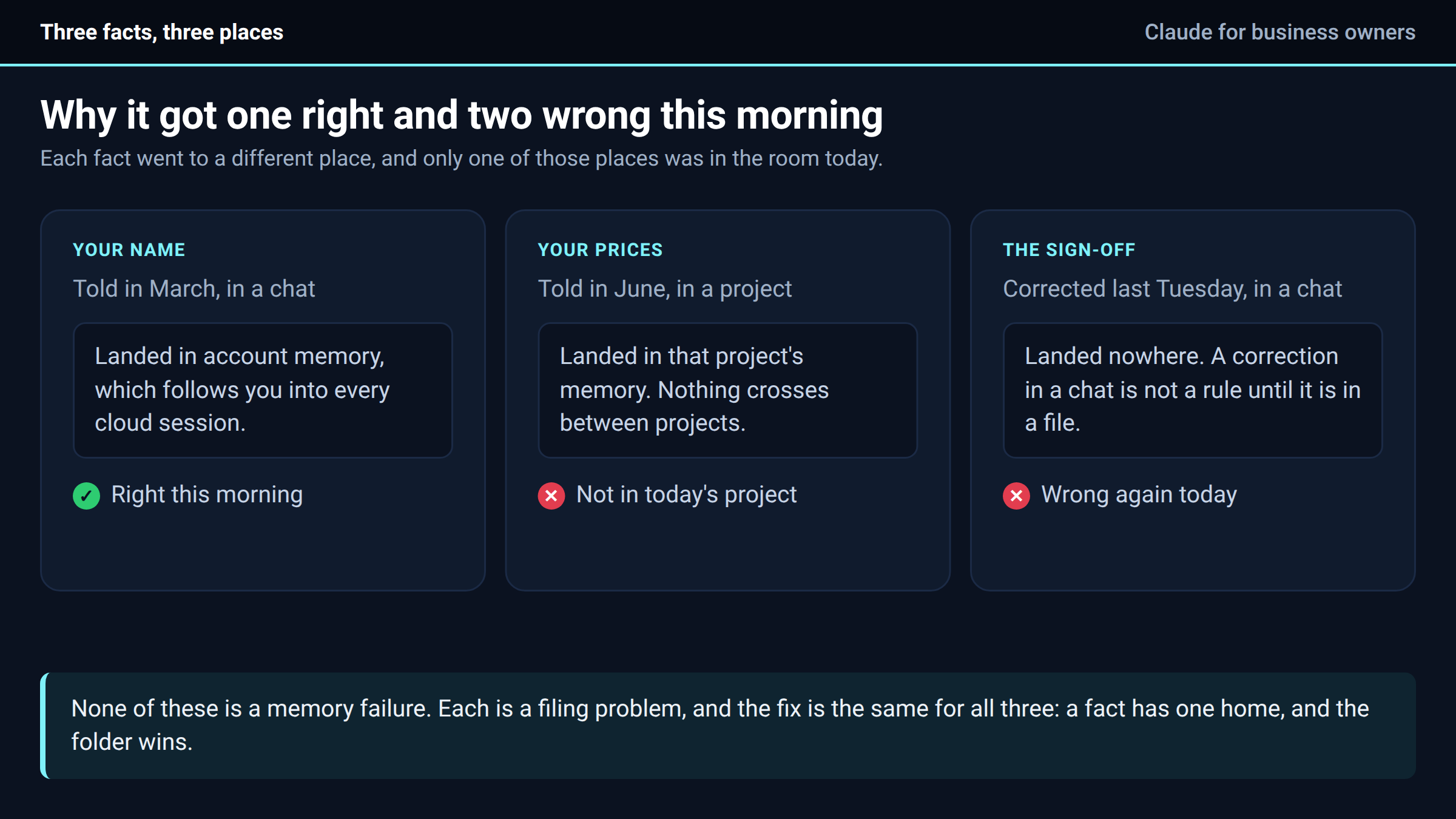
Go back to the three things from the top. Your name was in account memory, so it came out right. Your prices were in a project you were not using this morning, so they were not there. The sign-off correction was made in a chat, and a correction in a chat is not a rule anywhere until you write it down, which is what the correction loop from two weeks ago is for.
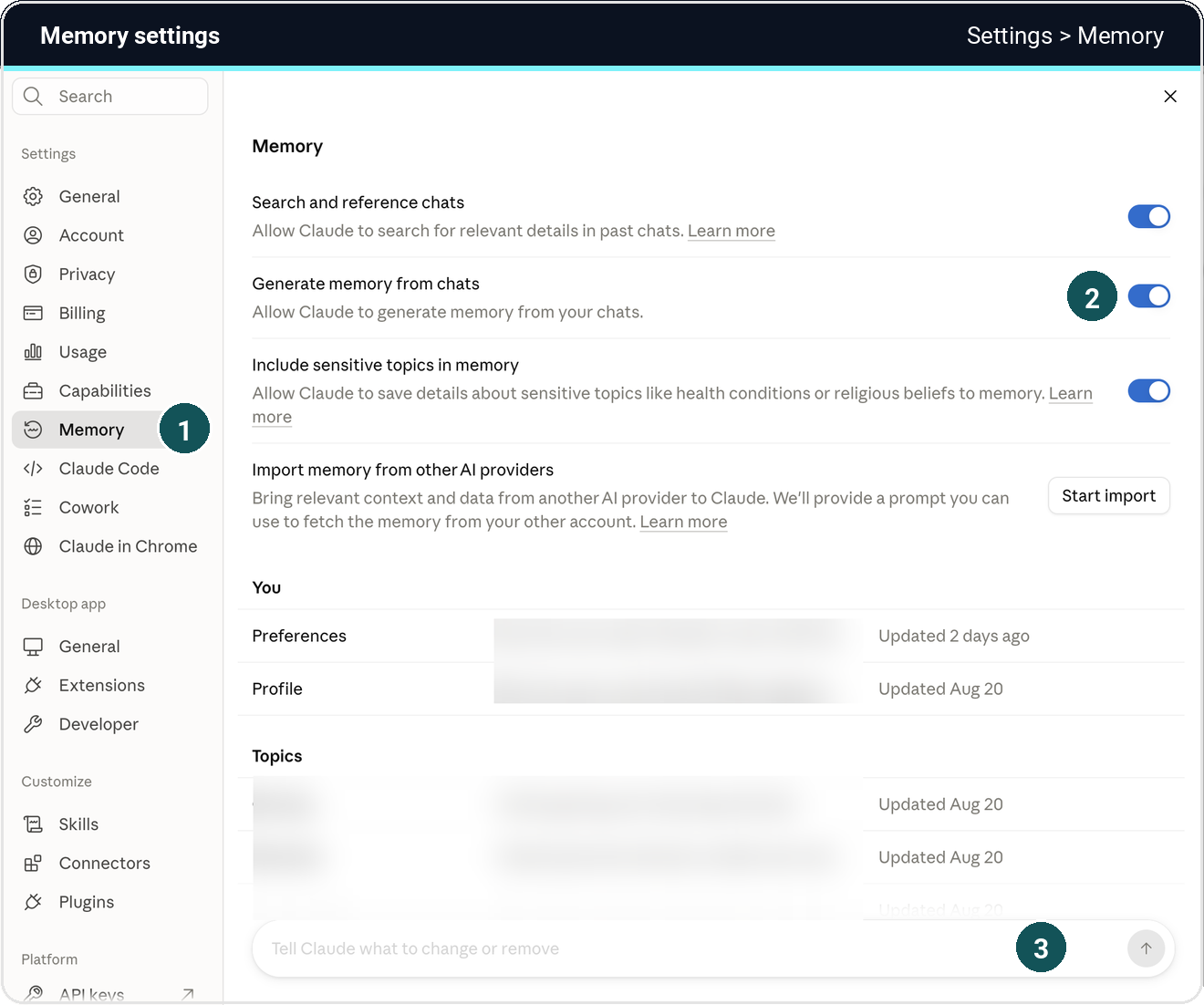
There is one more case worth knowing. Memory is a switch on each task: click the + in the message box of a new chat before you type, and Memory is there with a tick, on by default. Untick it and that task works from the folder and the project, and nothing else. On Team and Enterprise accounts memory is off until an owner turns it on. If your setup ran with memory off, the setup prompt told you it skipped the memory step and listed the four facts to seed by hand. Open a new chat with Memory ticked, say "remember this" and give it those four, then check Settings, under Memory, that they landed.
What memory leaves out
Some things are never saved, in any setting. The help center lists government ID numbers, criminal history, financial account numbers and immigration status. By default it also leaves out sensitive topics such as health, religion and politics, and there is a switch on the Memory page to include them. A business setup rarely needs that switch on, so leave it.
Two other switches sit on that page. Generate memory from chats, turned off, keeps what is already there but stops Claude using it or adding to it. Search and reference chats, turned off, stops Claude looking back through old conversations. And for a one-off you do not want in the record at all, an incognito chat is not saved and not remembered. On claude.ai it is the ghost icon at the top right of a new chat, and Friday's post uses it for the before-and-after test.
The fifteen-minute pass
Memory goes stale the same way files do. A team member leaves or a price changes, and the old version sits there reading exactly as confident as a current one. Fifteen minutes a week keeps the map close to the ground, and the course gives it a checklist.
Open Settings, under Memory, and read the list. Delete anything wrong and edit anything that changed. Anything that is a business fact rather than a fact about you moves into the folder, then gets deleted from memory, so there is one home. Anything proven wrong this week goes into the stale-claims table in CURRENT-STATE.md, so it stops coming back through an old draft. Check that no password, key or account number ended up anywhere, and if one did, delete it and change it. Read the change log for the week and give anything decided but unwritten a line. Then ask Claude what it remembers about you and the business that is no longer true, and fix it.
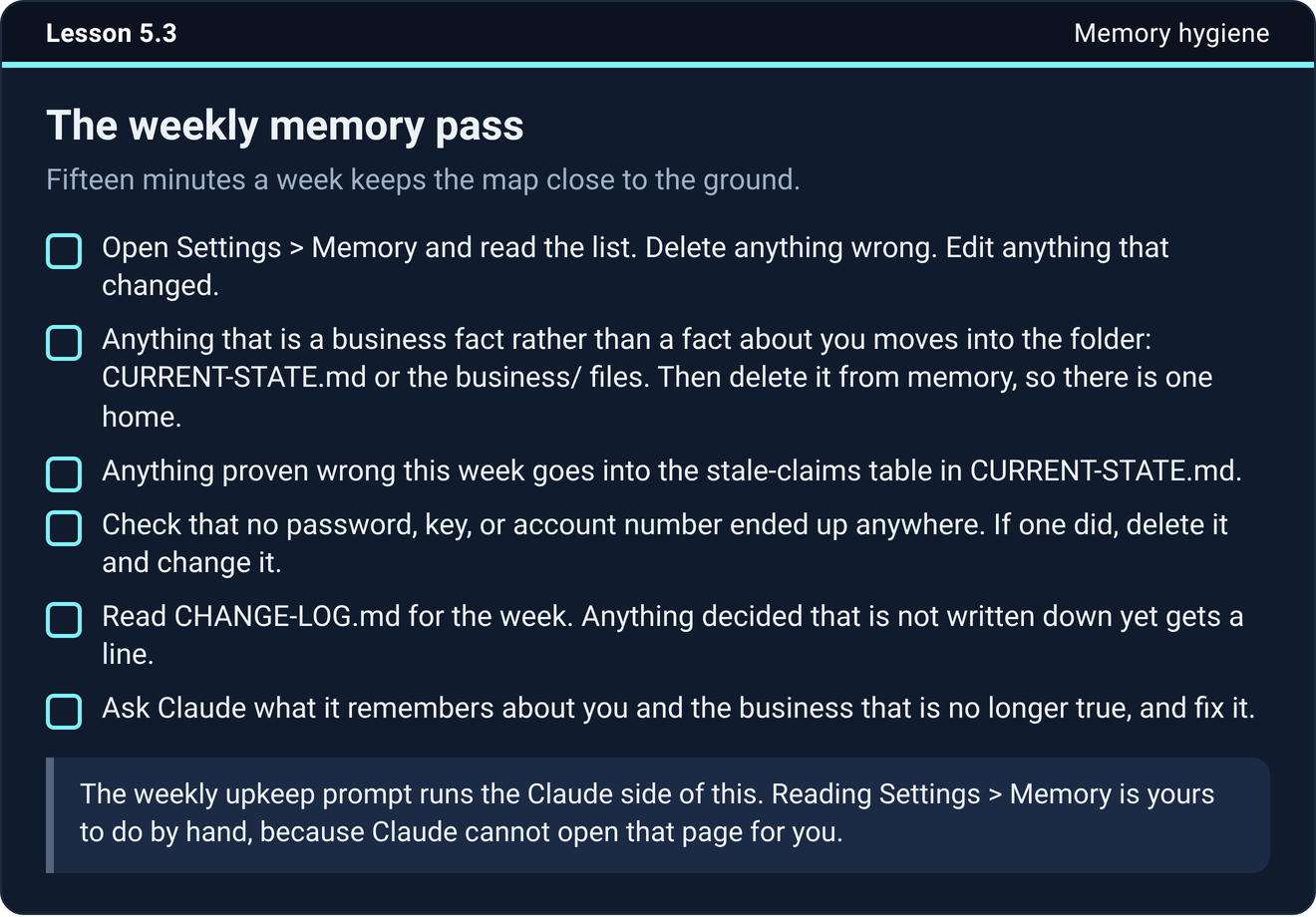
The weekly upkeep task in the course runs the Claude side of that pass on its own. Reading the Memory page is yours to do by hand, because Claude cannot open that page for you.
Try it now
Open Settings, under Memory, and read what is there. If you have used Claude for more than a month, something on that page is out of date. Fix that one thing, then pick one business fact you find there and move it into a file.
The next step
Run the pass once this week, and put a fifteen-minute block on your calendar for the same time next week.
The folder, the rules files and the weekly upkeep task are all built for you in the course inside Teach Claude Your Business, where you onboard Claude like a new hire in one sitting and keep everything it builds. It is free to join.
Join Teach Claude Your Business
Sources: Use Claude's chat search and memory to build on previous context, Claude help center, read September 29, 2026. The three kinds and the weekly pass are from Onboard Claude lessons 5.1 and 5.3.

