
The weekly jobs Claude runs while your laptop is closed
Most of what you ask Claude for happens while you sit there and watch. A scheduled task is the other kind. You write the job once, pick a day and a time, and it runs on its own, in the cloud, with the laptop closed and the app shut. Monday morning the brief is waiting for you, and Friday afternoon the numbers are already done.
Anthropic's help center, read on September 24, 2026, says scheduled tasks are on every paid plan, meaning Pro, Max, Team and Enterprise, and that they run remotely, so they keep their schedule even when your computer is asleep or the desktop app is closed. A task has the same reach as any other job you give Claude, meaning your connected tools, your skills and your installed plugins. It can run hourly, daily, weekly, on weekdays, or only when you press run.
The one thing to know before you build one
A run in the cloud cannot read the folder on your computer. If you did the setup course, that folder is where your rules, your prices and your voice sample live, and a cloud task never opens it. It works from your connectors, your skills, the instructions in your settings, the project's instructions if you attach one, and whatever you put in the task's own prompt.
So everything the folder would have told Claude has to ride inside the task. That means the prompt carries the job, the tools to use, the shape of the output, how you sound, and the rule that it drafts and never sends. The prompts in the course kit are written that way, and once you see one you can write your own.
There is a switch on the form called Require this computer that changes this. Turn it on and the task runs only while that computer is awake, and it can reach the folders you have allowed. Saving it brings up a permission box that asks you to let the task reach that folder on every run, including runs while you are away, and tells you the files it uses leave your computer to be processed on Anthropic's servers. Read it before you allow it. For the jobs below, leave the switch off. They are built for the cloud.
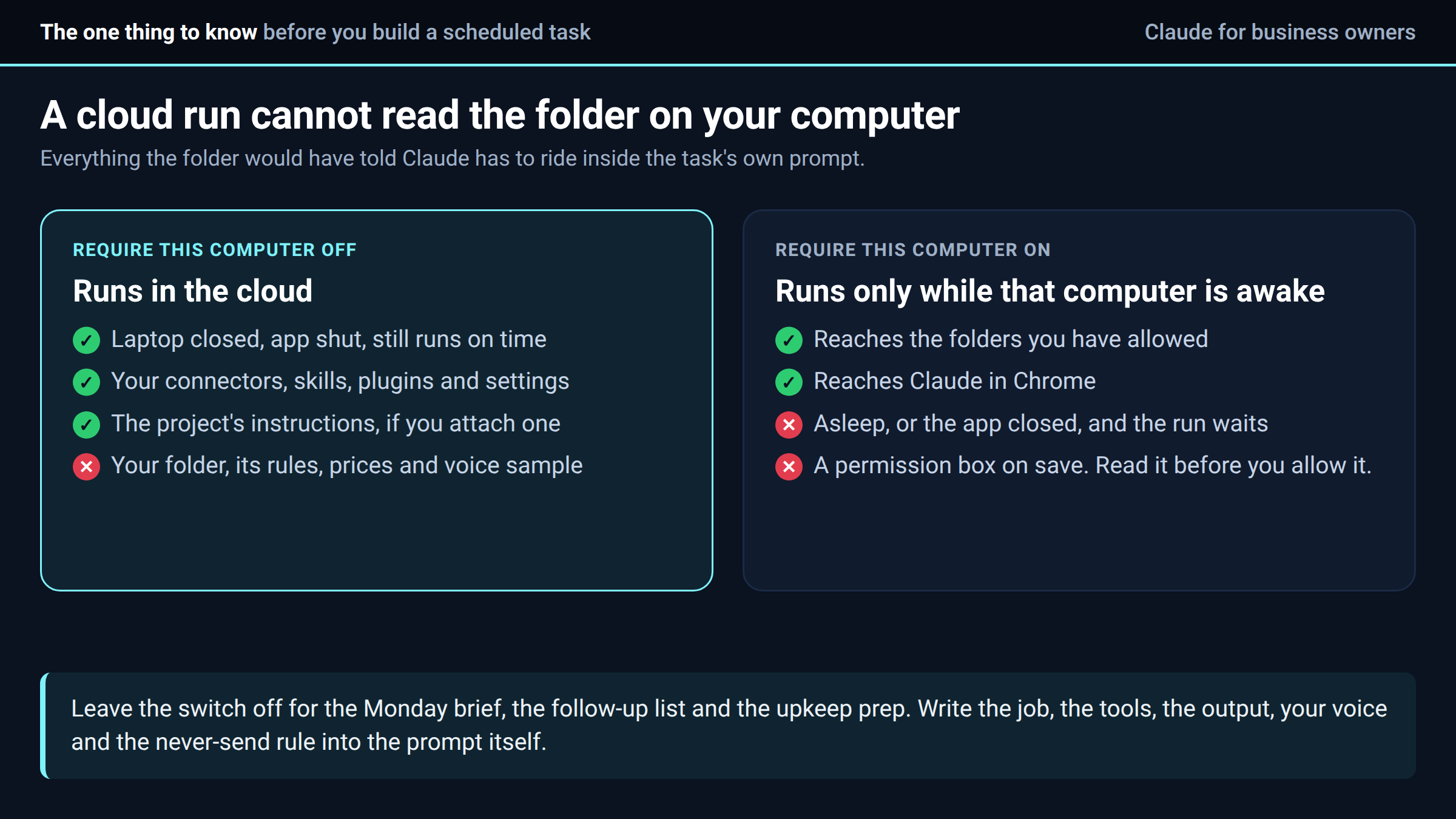
Since October 6, 2026, that is the only switch. Every new task on Pro and Max runs in the cloud, and the Only on this computer option that used to sit in Settings is gone. The Permissions box on the form opens on Auto, which runs without asking; set a new task to Manual until you have read a run.
Setting one up
Click Scheduled in the left sidebar. There are ready-made tasks to start from, and a New task button that offers two routes, Create with Claude and Set up manually. The manual form takes a name, the instructions, a project or folder to attach, the model, the frequency with a day and time, and the approval mode. On the merged version of Claude there is a third way in, which is to describe the job and its schedule in any conversation and click Schedule on the card Claude proposes.
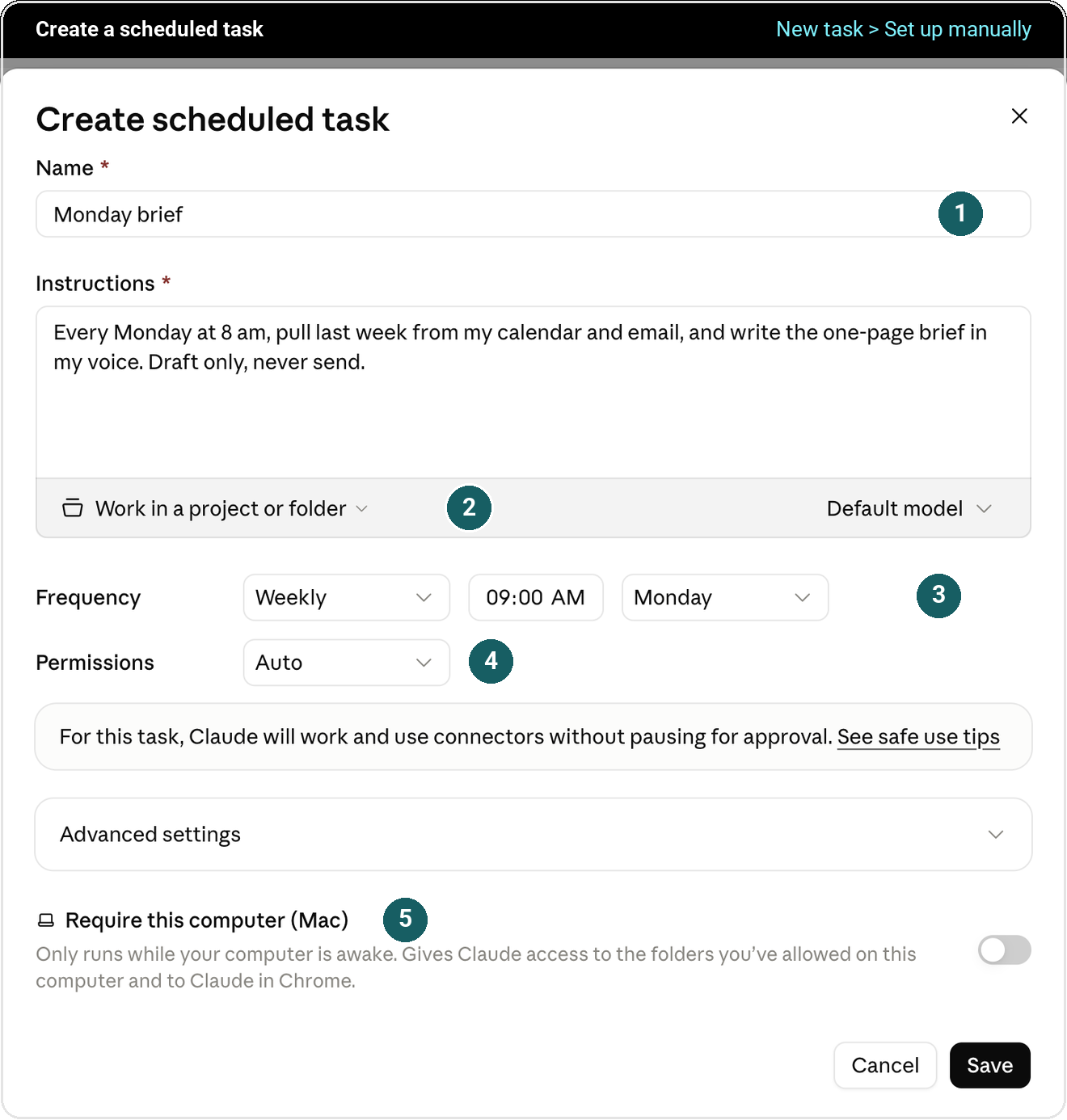
Two settings on that form deserve a second look.
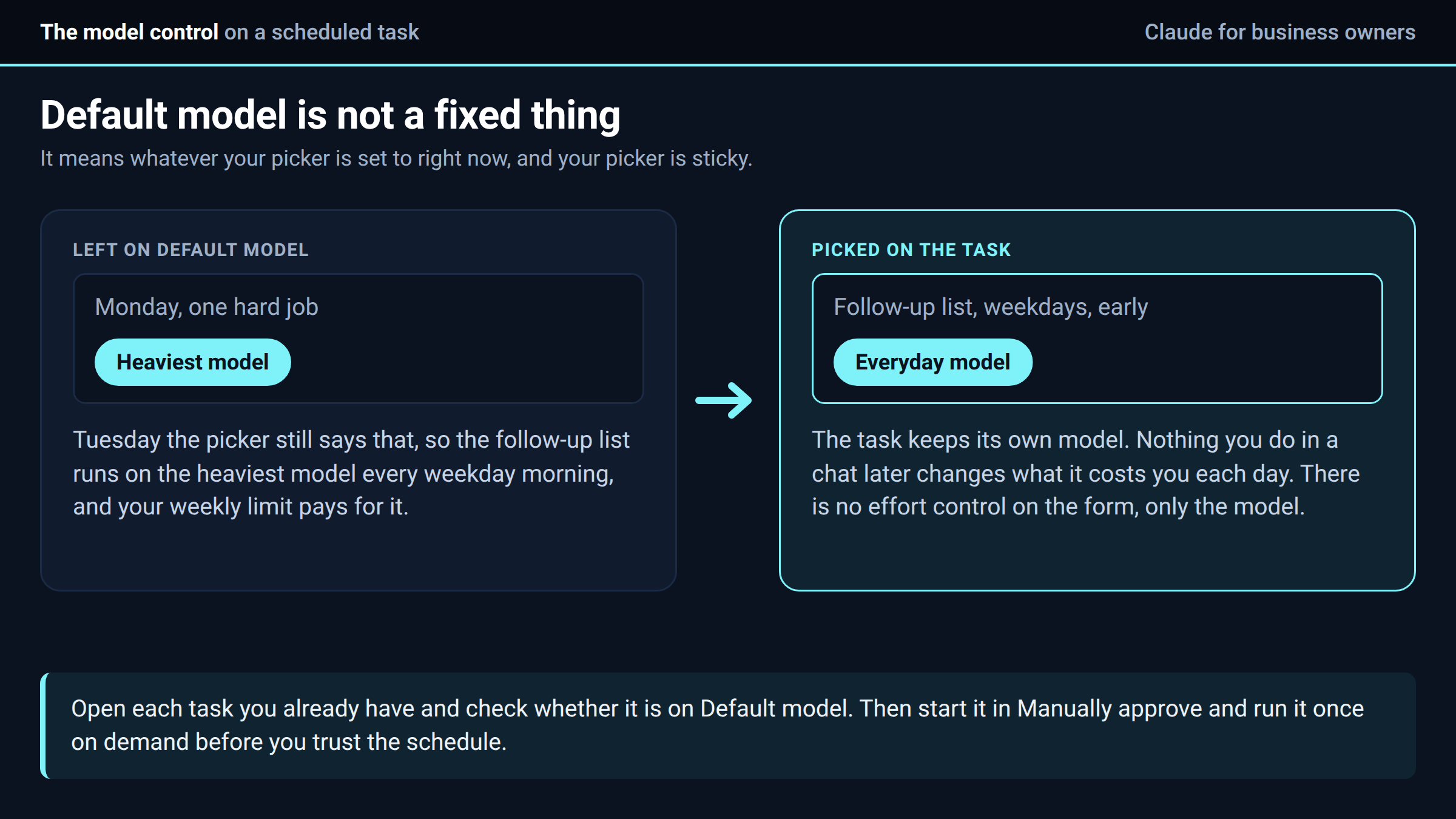
The first is the model. The control sits at the bottom right of the instructions box and reads Default model. Default is not a fixed thing. It means whatever your picker is set to at the moment, and your picker is sticky, so the heavy model you left in there after one hard job on Monday quietly becomes the model that runs every weekday morning. Pick the model on the task itself. Then nothing you do in a chat later can change what that task costs you every day.
The second is the approval mode. Start every task in Manually approve and run it once on demand from the Scheduled page before you trust the schedule. Read that first run. If it asks you for something, the prompt is missing a fact. Add the fact and run it again. If the run pauses on a read, switch that task to Automatically approve, since the jobs below cannot send or change anything, so there is nothing to approve.
Pick the time with a little care. The form warns you when the time you chose falls in peak hours, weekday mornings and afternoons in US time, because a run then uses your weekly limit faster. Anything that does not have to land early can go later.
Three jobs to hand over first
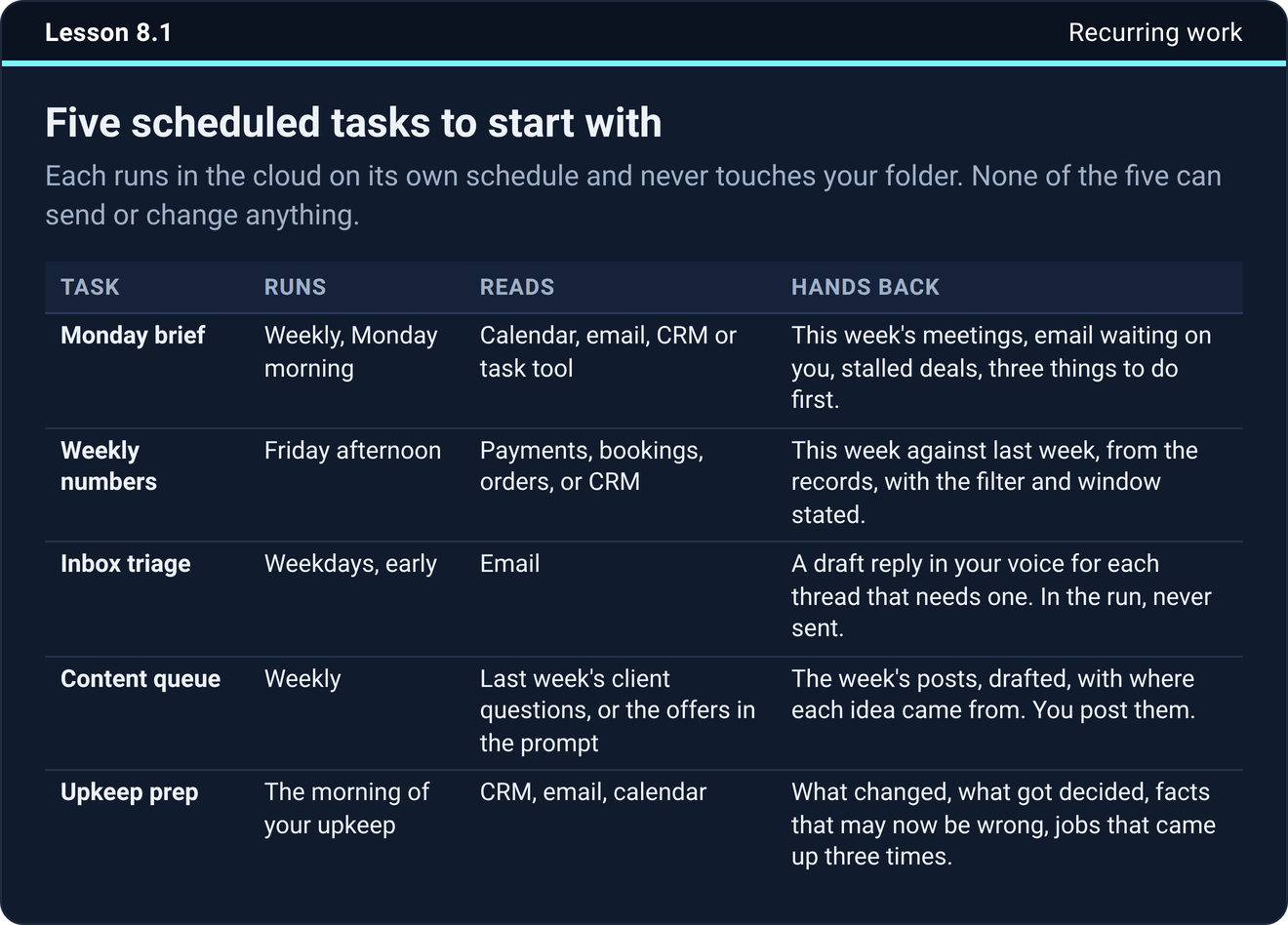
The Monday brief runs weekly, Monday morning. It reads your calendar, your email and your CRM or task tool, and hands back this week's meetings, the email waiting on you, the deals that have gone quiet, and the three things to do first. Build this one first, because you will read it the day it runs and know right away whether the prompt is good.
The follow-up list runs weekdays, early. It reads your email and hands back a draft reply in your voice for every thread that needs one, inside the run, never sent. You read each draft, fix the two that need it, and send them yourself. The task never touches the send button, and that rule is the point.
The upkeep prep runs the morning of your weekly check-in with Claude. It reads the CRM, email and calendar, and hands back what changed, what got decided, which facts in your files may now be wrong, and which jobs came up three times. That last one is the list of things to turn into a skill next.
The course adds a weekly numbers task and a content queue, and the five prompts come with it.
What a good run looks like
The Scheduled page shows the task, and the first on-demand run came back without asking you for anything. The output names its sources and what it could not find. Nothing went out to a customer. Once that has been true for a week, you can stop reading every run line by line and read only what it flags.
The next step
Build the Monday brief this week. Set up manually, paste in a prompt that carries everything a cloud run needs to know, pick the model on the task, weekly on Monday, and run it once on demand today.
The five prompts, the setup that gives Claude your rules and your voice, and the checks that keep a run honest are all in the course inside Teach Claude Your Business, where you onboard Claude like a new hire in one sitting and keep everything it builds. It is free to join.
Join Teach Claude Your Business
Sources: Schedule recurring tasks in Claude Cowork, Claude help center, read September 24, 2026. The click paths and the switch are from Onboard Claude lesson 8.1 and Pick the Right Claude lesson 3.2, checked in the desktop app when those lessons were built and again on October 11, 2026, and this app changes often, so the button names may move.

